
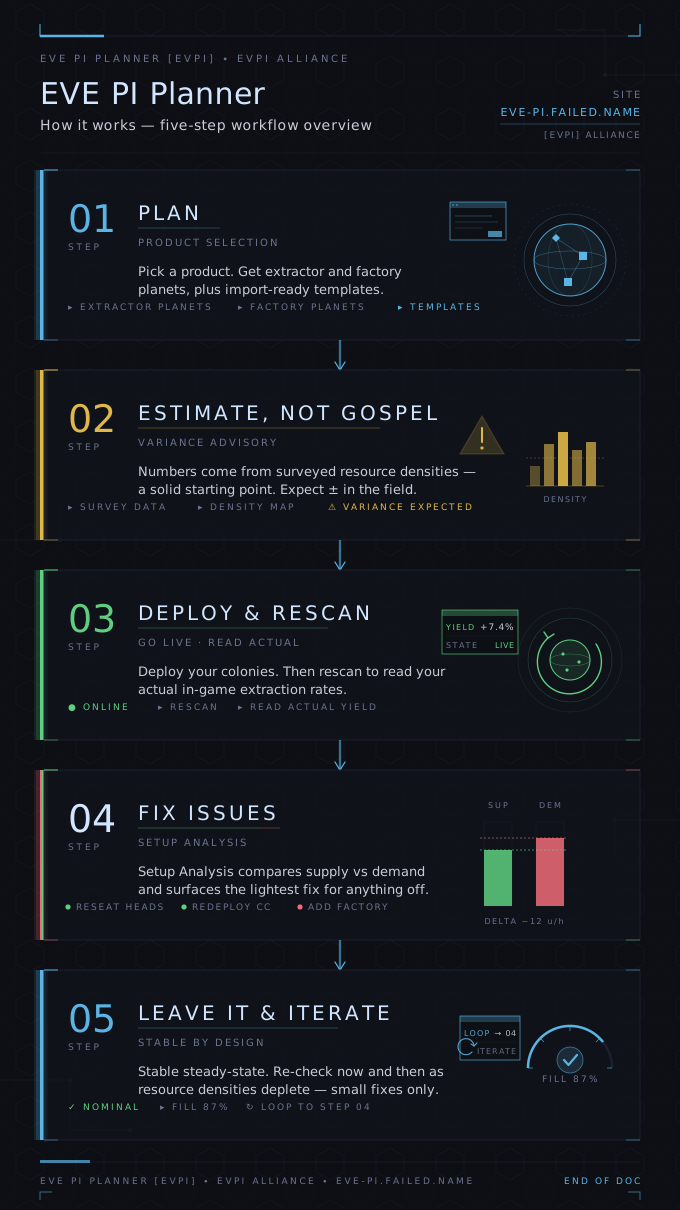
This tool helps you plan and run Planetary Industry across all your characters — for the most profit with the least hauling and fiddling. Here's what each part does, and one important thing to know about the numbers.
1. Plan a setup
In Planetary Planning you pick a product (or fuel blocks). The wizard works out how many extractor and factory planets you need, spreads them across your characters to keep hauling short, and hands you ready-to-import templates.
2. The plan is a guesstimate — not the truth
The wizard plans before anything is deployed, so it has no real extraction data — it estimates each planet's yield from surveyed resource densities. Those are only a rough guide, so your real colonies will produce a bit more or less than predicted. Treat the plan as a solid starting point, not gospel.
3. Setup Analysis corrects for reality
Once your colonies are live, log in and Rescan (Characters tab). Now the tool reads your actual in-game extraction — exact numbers, not estimates. The Setup Analysis tab compares what you really produce against what your factories need, material by material, and shows the lightest fix for anything off:
- Reseat heads — recover yield a depleting colony has lost (its hotspots thin out over time).
- Redeploy a command center — shift a surplus colony onto a material you're short on.
- Add factories — only when there's comfortable spare, so you're never forced to micromanage.
It deliberately keeps a buffer, so a good setup stays stable instead of needing constant tweaks. Run it now and then to keep your efficiency up as resources deplete and you reseat.
4. Dashboard — your PI at a glance
When logged in: each factory's fill % and time-to-empty, the value sitting in your launchpads, warnings (broken routes, expiring extractor programs, storage filling up), and spare capacity you could plan into.
5. The rest
- Refill a plan — paste your P1 stash and it splits it into your factories.
- Factory Layout — importable templates for any P1–P4 product.
- Planet DB — the shared density data the wizard plans from. Reading densities in-game and contributing them makes everyone's plans better.
The short version: the wizard gets you close with limited data; Setup Analysis uses your real numbers to close the gap — and keep you there.
Optimize for a specific order — fill exact quantities instead of just listing what's buildable
| Item | Tier | Produce | Order | Fill | Sell/unit | Revenue |
|---|
| Item | Max Output | Sell/unit | Total ISK | Bottleneck | Inputs Consumed |
|---|
| Item | Max Output | Sell/unit | Total ISK | Bottleneck | Inputs Consumed |
|---|
| Item | Max Output | Sell/unit | Total ISK | Bottleneck | Inputs Consumed |
|---|
The planner is only as good as its planet data. Every system, planet and P0 resource density comes from players reading the numbers in-game and importing them. The Planet DB is a single shared, global database — anything you import helps everyone planning in those systems. Right now the maintainer has seeded the systems they fly; as more people use the tool, user-contributed data is how we cover the rest of New Eden.
1. Read a planet's resource density in EVE
No scanning ship needed — you can do this while docked. But for the numbers to be accurate two things matter: be in the system you're surveying (accuracy drops the further away you are), and train Remote Sensing as high as you can — low skill or distance gives rough readings, so the best data comes from a high-skill character on-site.
- Be in (or as close as possible to) the target system, then open Agency → Resource Harvesting → Planets → Planetary Industry.
- Select the system you want to survey, then choose a planet.
- The planet's P0 resources are listed. Hover over each one and read the
tooltip —
Resource Density: 37%. That percentage (37) is the value we want. - Record the density for each of the planet's five P0 resources. Nothing needs to be placed on the planet — just note the numbers and move on.
2. Build a spreadsheet
Put one planet per row in a spreadsheet (Google Sheets, Excel, anything that copies as
tab- or comma-separated text). You need a header row, a
System column, a Planet column, and then
one column per P0 resource holding the density percentage you read in-game
(just the number, e.g. 37). Leave a cell blank or 0 if that resource isn't present.
- Constellation and Type columns are optional — the constellation is filled in from the system name, and the planet type is inferred from which P0 resources the row fills (each planet type has a unique five-resource set).
- P0 column headers are matched by name and are case/spacing-insensitive
(e.g.
Microorganisms=Micro Organisms,Aqueous Liquid=Aqueous Liquids).
Example (tab- or comma-separated):
System    Planet    Aqueous Liquids    Base Metals    Carbon Compounds    Microorganisms    Noble Metals
0-U2M4    4         82                 64             71                  90                55
0-U2M4    6         0                  77             0                   48                88
PVF-N9    3         95                 60             80                  100               40
The 15 recognised P0 resources are:
Aqueous Liquids, Autotrophs, Base Metals,
Carbon Compounds, Complex Organisms, Felsic Magma,
Heavy Metals, Ionic Solutions, Microorganisms,
Noble Gas, Noble Metals, Non-CS Crystals,
Planktic Colonies, Reactive Gas, Suspended Plasma.
Each planet type yields exactly five of these.
3. Submit it for review
- You must be logged in (add a character via ESI on the Characters tab) to submit data.
- Go to the Planet DB tab and click Import.
- Copy your whole spreadsheet — including the header row — and paste it into the box, then click Import.
- Your data goes into a review queue — it doesn't change the live database yet. An admin checks it and approves it before it appears for everyone. You'll see how many planets you submitted, plus warnings for any rows that couldn't be parsed (fix those and re-submit).
Why review? The Planet DB is shared by everyone, so we don't let just anyone change existing planets — bad or accidental data would break other people's plans. New planets and corrections both go through an admin first. Admins can import directly, and approving a submission adds new planets or updates existing ones. Updates merge: a blank cell keeps the current value, so you only need to fill in the resources you actually re-measured.
That's it — once an admin approves, your data is available to everyone. Thank you for contributing, and fly safe o7
/metrics endpoint exports these stats in Prometheus text format. Enable it by setting PROMETHEUS_ENABLED=1 in the environment. Secure it with PROMETHEUS_TOKEN=<secret> — Prometheus scrape config: bearer_token: <secret>. The endpoint returns 404 when disabled.